


How to Contact Airbnb Customer Support (as a Host)
Key Takeaways:
- Airbnb owners get better outcomes when they prepare a “case kit” with reservation ID, timeline, screenshots, photos, and a clear one-sentence request.
- Most issues should start in the Help Center, which routes you to chat, messaging, or phone support based on topic and region.
- Financial disputes and AirCover claims must go through the Resolution Center, while Support Messaging is reserved for ongoing communication with Airbnb agents.
- Phone and chat options work fastest when launched from a logged-in account, using the in-app “Call us” or “Chat” buttons for proper routing.
- Superhosts and well-structured requests are prioritized more effectively, so concise messages, organized evidence, and respectful escalation significantly speed up review and resolution.
Introduction
Hosting usually feels smooth, but every host eventually meets a moment that needs real help. A guest cancels at the last minute. A payout arrives late. A guest challenges your rules or refuses to pay for damage. When this happens, you must know how to reach Airbnb customer support quickly and clearly.
Support for hosts is not the same as support for guests. Guests care about bookings, refunds, and travel plans. Hosts manage payouts, damages, safety, and legal responsibilities. Because of this, hosts need reliable contact channels and clear steps.
Before you reach out, prepare a simple “case kit.” You should have your reservation code, a short timeline, screenshots, and photos. You should also write one or two sentences that explain exactly what you want help with. This small effort helps the support agent move faster and reduces delays.
Main Ways To Contact Airbnb Support For Hosts
Airbnb uses several support channels. The Help Center routes you based on your issue, your region, and your account status. Each path has its own purpose, so it helps to understand how they work together.
| Channel / Method | Best For | How To Access (Short) | Key Pros | Key Cons |
|---|---|---|---|---|
| Help Center | First step for any issue | Log in → Help → Hosting → Choose reservation → Follow guided steps | 24/7 access; structured flow; links case to reservation | Several clicks before human help; automated replies can repeat |
| Support Messaging | Ongoing communication about an existing case | Created after Help Center contact → Inbox → Support | Central place for updates, documents, and case history | Replies not instant; agents may change mid-case |
| Resolution Center | Money-related issues and AirCover claims | Log in → Resolution Center → Select reservation and request type | Keeps financial requests structured; supports evidence uploads | Only for payments and claims; not for policy or communication issues |
| Airbnb Customer Support Chat | Non-emergency issues needing fast, written help | Help Center → Follow prompts → “Chat with us” / “I still need help” (if shown) | Faster than email-style replies; full written history; supports screenshots | Not always offered; queues and bot replies may delay human agent |
| Airbnb Customer Support Phone Number | Urgent, complex, or emotional situations | Log in → Help Center → Select issue → “Call us” → Dial number shown | Real-time discussion; best for time-sensitive problems | Wait times vary; calling without logging in can slow routing |
| Safety and Urgent Support | Active safety threats or guest refusal to leave | App → Profile/Menu → Safety Center → Urgent Support | Connects to specialized safety team; prioritizes high-risk cases | Focused only on safety; not for payouts or general disputes |
| Social Media Channels | Stalled cases or account access issues | Message @AirbnbHelp on X or official Airbnb Facebook/Instagram pages | Can draw attention to stuck tickets; helpful when login fails | Not suitable for private data; complex cases return to Help Center |
1. Help Center (Primary Path For All Hosts)
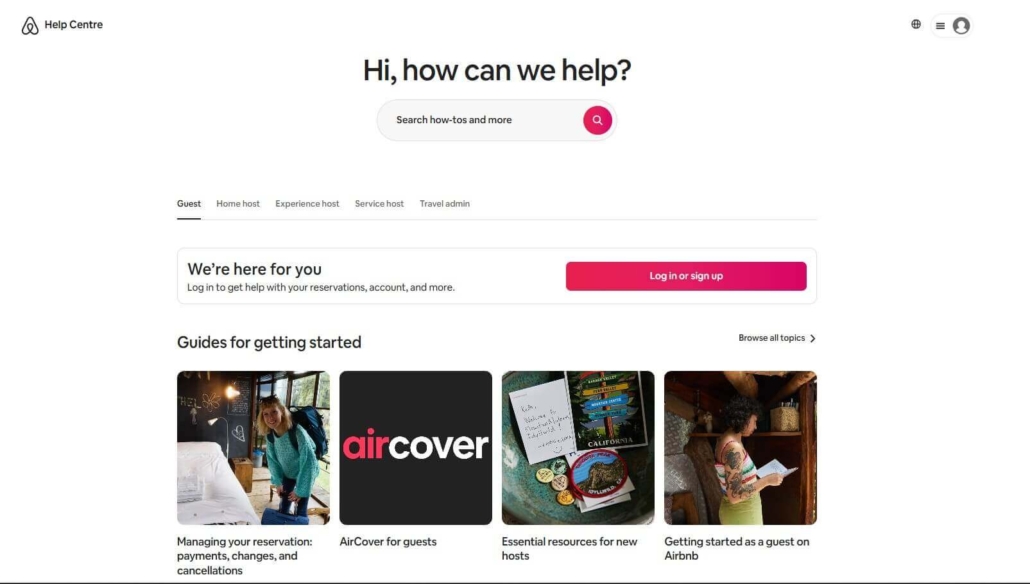
The Help Center is the main entry point for hosts. It provides guides, tools, and access to human support.
How to reach it:
- Log in to your host account.
- Click Help in the top menu or app menu.
- Choose Hosting and select the reservation.
- Pick the relevant topic and follow the guided steps.
Most cases start here because the system needs to identify your problem type first. Often, articles or automated flows solve simple issues. However, you can reach an agent through the same path when you still need help.
Pros:
- Available 24/7 from any device.
- Links your case to a specific reservation.
Cons:
- Requires several clicks before human contact.
- Automated answers can feel repetitive.
2. Support Messaging And The Resolution Center
It is important to separate Support Messaging from the Resolution Center. They look similar, but they serve different roles.
Support Messaging is for conversation. Once the Help Center creates a case, you see a thread in your Inbox under Support. It looks like a chat window. You can send updates, screenshots, and documents, and agents reply inside that thread.
The Resolution Center is for money. You use it when you request or send funds. For example, you open it to claim damage under AirCover, request extra cleaning, or send a partial refund. It is not a place to debate rules; it is a tool to submit financial requests.
If you have a money dispute, it usually works best to open a claim in the Resolution Center first. Then you can use Support Messaging to ask an agent to review the case and apply the rules.
Pros:
- Keeps money and communication structured.
- Works on both desktop and mobile.
Cons:
- Replies may not be instant.
- Agents can change during long cases.
3. Airbnb Customer Support Chat
During the Help flow, Airbnb may offer live chat as an option. The chat window appears when your issue fits categories that agents can handle by messaging.
How to activate it:
- Start in the Help Center while logged in.
- Follow the guided questions about your problem.
- When available, choose Chat with us or I still need help.
- Type a short, clear description to move past the bot. Because chat creates a written record, it works well for step-by-step troubleshooting. It also gives you a clear history of every promise or decision.
Pros:
- Faster than email-style exchanges.
- Great for live problem solving.
- Keeps a complete written history.
Cons:
- You may wait in a queue.
- Automated replies can repeat before a person joins.
4. Airbnb Customer Support Phone Number
Airbnb lists phone options inside the Help Center. The exact number and language options depend on your region, so they can change over time. The current global Help article shows 1-844-234-2500 as a main call option for many users.
To get the best routing, you should:
- Log in to the app or website.
- Open the Help Center.
- Select the reservation and topic.
- Choose Call us when it appears.
The system may verify your number or generate a code before you call. This step links your call to your account and can reduce wait time.
Here are examples of numbers that Airbnb currently shows on its Help pages for different regions:
- United States / Global: 1-844-234-2500
- Canada: +1-866-393-3393
- United Kingdom: +44 203 318 1111
- Australia: +61 2 8520 3333
If you host in another country, you can open your local Airbnb site, go to the Help Center, and check the “Contact Airbnb Support” article to see the latest number for your region.
Pros:
- Best for complex or emotional cases.
- Lets you explain nuance in real time.
Cons:
- Wait times vary by time and region.
- Calling without logging in first can slow routing and verification.
5. Written Contact (The Long-Form Option)
Airbnb no longer promotes a simple public email as the way to start a case. Instead, it directs both guests and hosts to the Help Center and in-platform messaging. This keeps cases organized and tied to a reservation.
If you prefer detailed written communication, you can still achieve that. You simply:
- Start through the Help Center.
- Use chat or contact forms to open a case.
- Continue the discussion in Support Messaging.
You receive email alerts when an agent replies, but you respond from your Airbnb Inbox. In practice, this replaces old “email us” workflows and offers more control over privacy and verification.
Pros:
- Ideal for long explanations and complex evidence.
- Easy to attach multiple files and timelines.
Cons:
- You cannot start a fresh case by sending a random email.
- Response speed depends on queue and case type.
6. Safety And Urgent Support
Some problems sit above normal support. If anyone is in immediate danger, you should always call local emergency services first. After that, Airbnb offers its own safety tools.
In the app, you can:
- Open Profile or your menu.
- Tap the Safety Center.
- Choose Urgent Support if available.
This connects you to a specialized team for active safety issues, such as a guest refusing to leave, threats, or serious illegal behavior. They focus on safety and platform rules, not on financial claims.
7. Social Media Channels
When regular channels stall, some hosts turn to social media. Airbnb runs the @AirbnbHelp account on X (Twitter) and official pages on Facebook and Instagram.
You can send a polite message that includes your first name and case number. While they cannot solve payment or identity issues in public, they can often nudge a stuck ticket or guide you back to the right internal path.
Pros:
- Visible channel that can draw attention.
- Useful if you cannot access your account.
Cons:
- Not suitable for private data.
- Complex cases still move back to the Help Center.
Explore Reasons for Airbnb Claim Rejection.
Special Notes For Superhosts
Superhosts receive priority treatment in many regions. When you call or start a chat while logged in, the system recognizes your status. It may route you to more experienced agents or reduce queue time. There is no separate public telephone number, yet your account level still matters.
Because of that, you should always start from a logged-in session, not as a guest. This simple step helps the system route your case with the correct priority.
How To Contact An Airbnb Operator Effectively
Reaching a human operator is easier when your first message is clear. The system scans your text before it sends you to an agent.
You should keep your opening line short and direct. For example:
- “Reservation HJ3X7D. Payout missing. Need an agent.”
- “Reservation K2M44F. Guest damaged property. Help with claim.”
After an agent joins, you can share details. You can also ask to escalate the case if safety or large sums of money are involved.
To speed up review, provide information in a neat order:
- Reservation code.
- Two-sentence summary.
- Timeline with dates and key times.
- Screenshots of messages.
- Photos of damage or proof.
This structure respects the agent’s time and improves your chance of a quick, fair decision.
Final Words
Every host eventually needs support. Bookings fail, payouts stall, guests break rules, or safety worries appear. When these moments arrive, it helps to know how to contact Airbnb customer support through the right channel. You can use the Help Center, Airbnb customer support chat, and the Airbnb customer support phone number to raise issues and protect your business.
In some cases, the Airbnb customer support line you see will depend on your region and login status, so always start from your account dashboard. When you need to email Airbnb customer support or use written tools inside the platform, you should still begin your request through the Help Center first. If you contact Airbnb customer support with a clear summary, a clean timeline, and solid evidence, you give support agents what they need to reach a faster and more accurate resolution.
FAQ
1. What is the fastest way for a host to contact Airbnb support?
The fastest way for a host to contact Airbnb support is through the Help Center’s Call us or Chat options while logged into their account. These channels route the case directly to Airbnb’s support system and connect you with an agent faster than email or social media. Phone support works best for urgent or time-sensitive issues, while chat is suitable for problems requiring screenshots or written explanations. The options you see may vary by region, account status, and issue type.
2. What should I do if my account is suspended?
If your account is suspended, the first step is to follow the instructions in the suspension email and submit any requested documents through the Help Center. Most suspensions require identity verification, security checks, or policy reviews, and cases cannot be resolved through phone or social media. You should log in, visit the Account or Suspensions section in the Help Center, and provide the information Airbnb requests. Once submitted, wait for the review team to respond within the timeframe outlined in the message.
3. Where should I write if a guest has caused damage and needs a refund through AirCover?
If a guest has caused damage, you should submit the request through the Resolution Center, which is the required pathway for AirCover reimbursement. This form allows you to upload photos, receipts, timelines, and a detailed cost breakdown. After submitting the claim, you may follow up in the Support Messaging thread if an agent needs clarification. AirCover cases must be filed within the applicable deadlines, and all communication should remain inside the Resolution Center and the linked support thread.