


Airbnb And Google Maps: Some Tips For Hosts
Table of contents
Key Takeaways
- Adding Airbnb to Google Maps works through Google Business Profile using a real street address, and it can be done at no cost, but only where the property qualifies: Google’s eligibility guidelines rule out rental properties such as vacation homes.
- Google Maps doubles as a search and navigation directory, so guests often check it before booking.
- Address visibility can be hidden while still being verified, which helps hosts who don’t receive walk-ins.
- Accurate pin placement matters, especially for guests using GPS to arrive at the entrance.
- Consistent names, photos, and website links protect trust and prevent verification delays.
- Reviews can’t be removed for being negative, only for policy violations, so reporting is the right path when needed.
- Importing a profile to Bing Places expands visibility to more guests, especially on Microsoft devices.
- Ongoing care like answering Q&A, updating photos, and replying to reviews shows active ownership, which helps discovery and guest confidence.
- Google Vacation Rentals is a separate product from a map profile, and properties reach it through a connectivity partner rather than by signing up as an individual host.
- Promoting an Airbnb listing on Google is free on three fronts: an eligible map profile, a direct booking site in Google’s lodging search, and the listing page Google already indexes.
Introduction
You can add Airbnb to Google Maps by creating a Google Business Profile and completing verification. So if you’re asking how to add my Airbnb on Google Maps, the process is real, and it works when you use a valid address and follow Google’s location rules. Once your profile goes live, guests can confirm your Airbnb Google Maps location and navigate more easily.
At the same time, this setup can support local discovery because travelers often search Google Maps before they book. For that reason, it helps to treat your profile like a public information card: accurate, clear, and easy to trust.
What Is Google Maps
Google Maps is a mapping and navigation service that also functions as a local search directory. People use it to find places, check photos, read reviews, and get directions. Because of that, a well-set profile can help guests understand your location context, like neighborhood access and nearby landmarks.
Can I Add My Airbnb Property Address To Google Maps?
Sometimes, and the condition matters more than the paperwork. Google’s rule is that a business qualifies for a Business Profile only if it “make[s] in-person contact with customers during its stated hours”, and its eligibility guidelines list “Rental or for-sale properties such as vacation homes, model homes, or vacant apartments” among the examples that are not eligible. A staffed property, a guesthouse with in-person check-in, or a management office is a different situation from a self-check-in holiday home that nobody attends.
Where a profile is allowed, you must use a real, precise address. Google expects an accurate location or a defined service area, and it does not accept PO boxes or remote mailboxes for addresses. Service-area businesses, such as a management company that serves properties across a city, keep one profile for the staffed office and set a service area around it, so the street address is verified without being displayed.
Why Add Your Address To Google Maps?
It helps guests navigate more smoothly, especially on arrival day. It also improves how your property appears in local search results, because Google can connect your profile to location-based queries. Finally, verification adds trust, since Google confirms that a real owner manages the listing.
Check out:
- Best Airbnb Markets: Occupancy, ADR, Laws & Yields
- Best European Cities for Airbnb Investment in 2025: Returns, Rules & Costs
- Best Australian Airbnb Markets 2025: Top Cities, ROI & Regulations
How To Add Your Address To Google Maps
Before you follow these steps, check that the property fits. Google allows a Business Profile where a business makes in-person contact with customers during its stated hours, so the setup below applies to a staffed property, a guesthouse with in-person check-in, or the office of a management company. A self check-in rental that nobody attends sits on Google’s ineligible list, and a profile built for one can be rejected at verification or suspended later.
Step 1: Start A Google Business Profile
Go to Google Business Profile and choose the option to add or manage a business. Then sign in with the Google account you want to use long term.
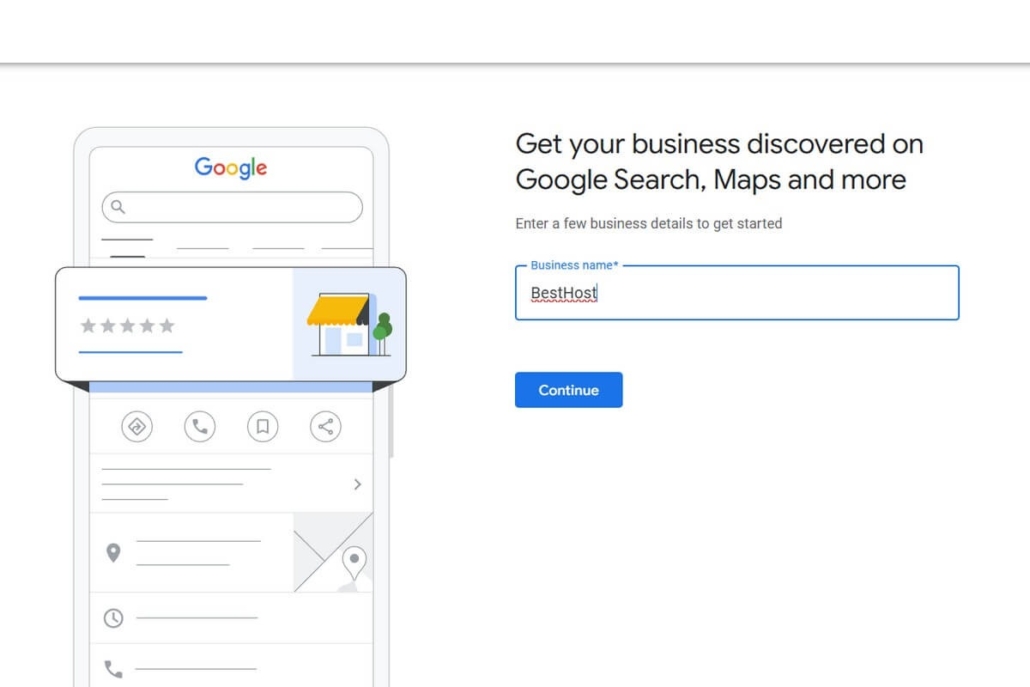
Step 2: Enter Your Profile Name
Type a name guests will recognize. Keep it consistent with your listing name, because consistency reduces confusion later.
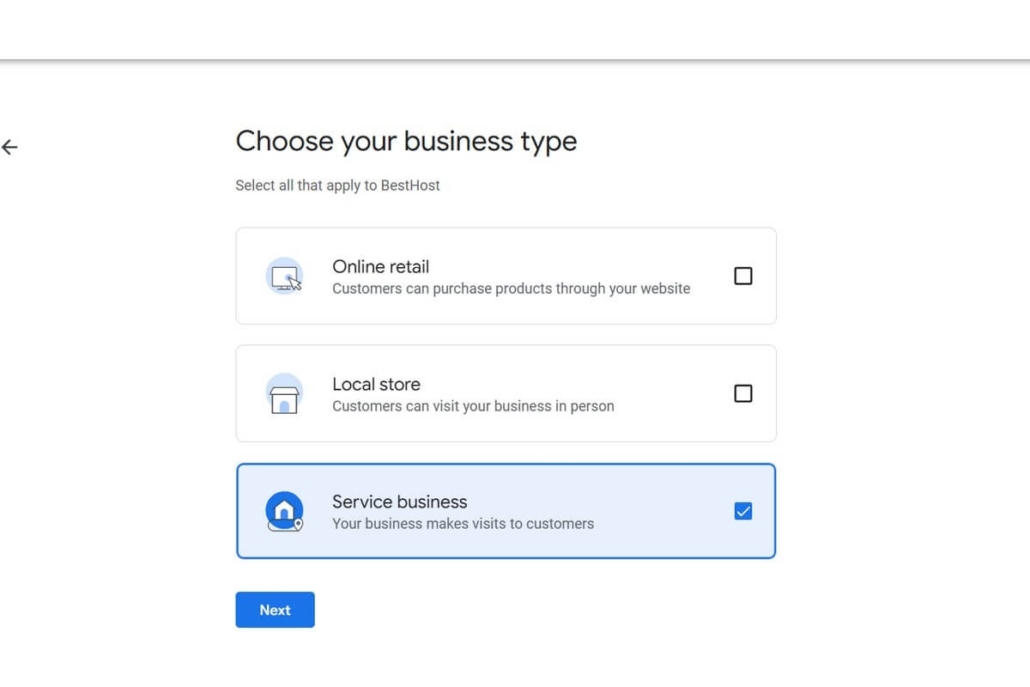
Step 3: Choose A Business Type
Select the option that matches how you operate. If you don’t host walk-ins, choose a setup that supports service-area style listings, because it may allow address privacy.
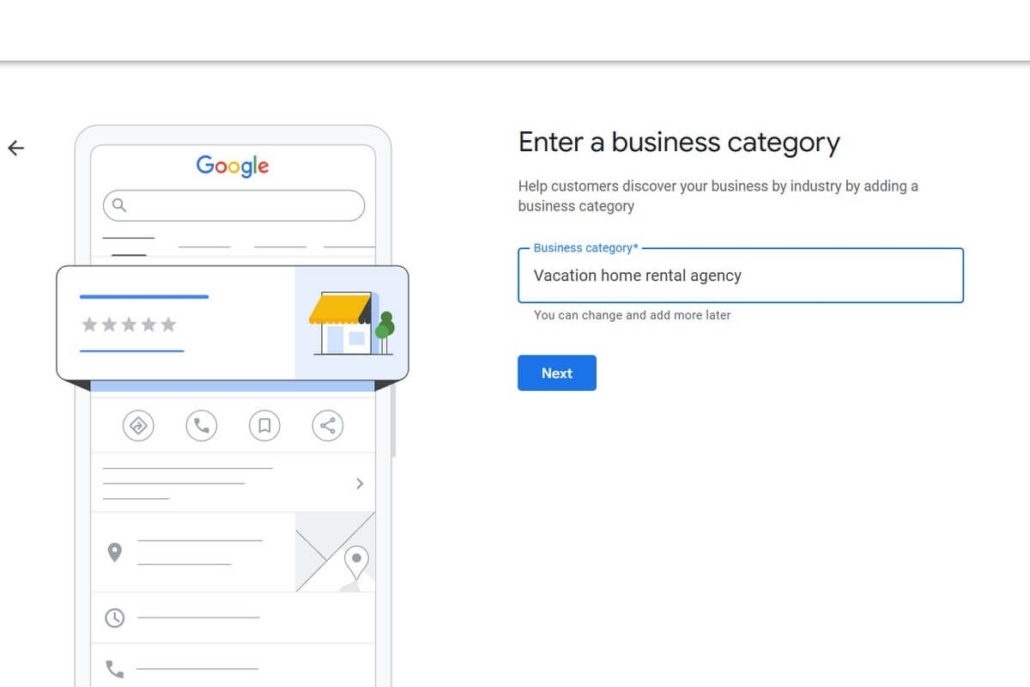
Step 4: Pick The Best Category
Search for a category that fits a vacation rental property. Choose the closest match from Google’s suggestions because the category affects where you appear in search.
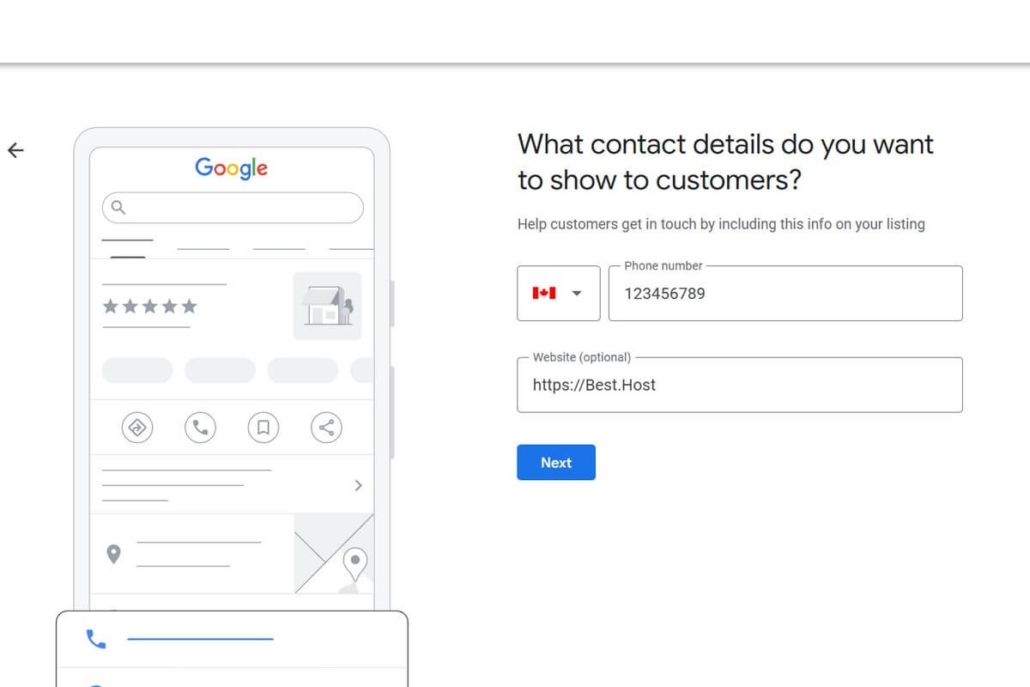
Step 5: Add Contact Details
Add a phone number and a website link. You can link to your Airbnb listing page if you don’t use a separate website.
Step 6: Add Your Address For Verification
Enter the real street address you can receive mail at. Google requires a precise address, and it does not accept PO boxes for this purpose.
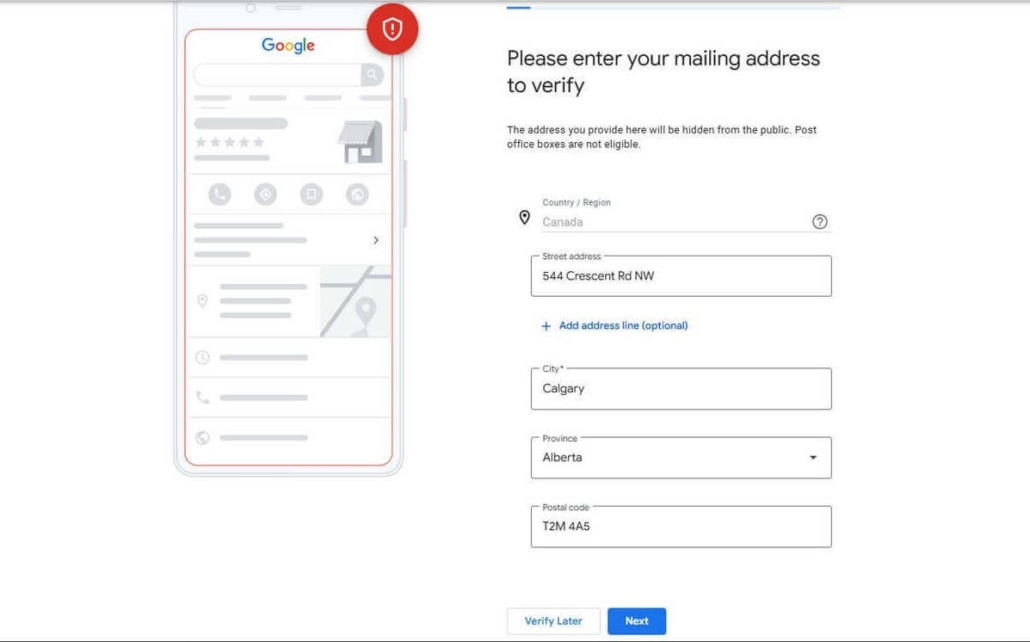
Step 7: Decide Whether To Show Or Hide The Address
If you don’t meet guests at the address like a storefront, hide it. If you host in person at that location, show it, but keep it accurate.
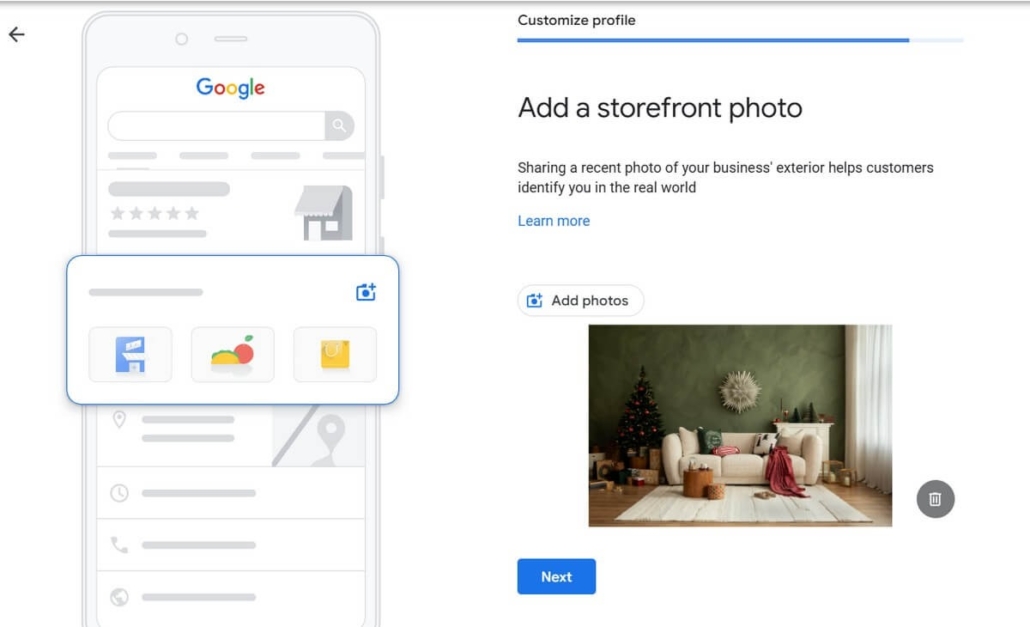
Step 8: Add Photos
Upload clear photos that reflect the rental. Start with the strongest interior shots, then add the exterior only if it helps guests find the entry without creating privacy issues.
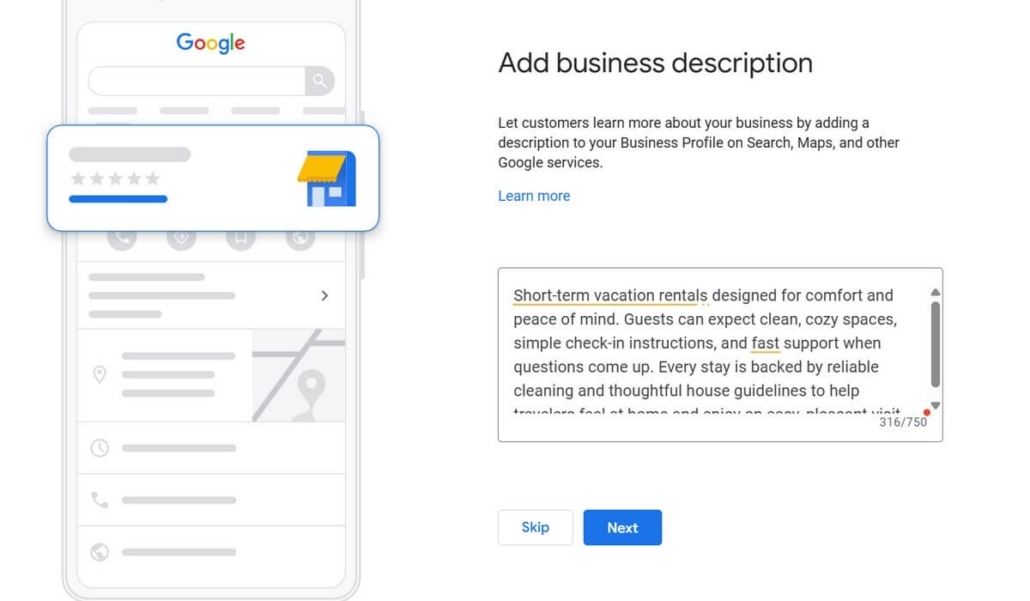
Step 9: Add a Short Description
Write a factual description of the vacation rental. Keep it simple, and focus on what guests can expect, like layout, access, and key amenities.
Step 10: Submit and Move to Verification
Finish setup and continue to verification. Your profile may appear as “pending” until verification is complete.
How To Verify Your Address On Google Maps
Google uses verification to confirm that the owner manages a real location. Depending on your profile, Google may offer one or more methods, such as postcard, phone, email, or video verification. If a postcard is offered, Google sends a code to your address, and then you enter that code in your profile dashboard. Also, Google warns you not to share verification codes.
If your postcard does not arrive, Google provides help steps to request support through the verification workflow.
Explore The Best Airbnb Statistics Services for Hosts.
Tips For Further Optimizing Your Address On Google Maps
A profile performs better when it stays accurate and active. So start with clear details, and then improve them regularly, because search engines favor maintained listings.
1. Set The Map Pin With Guest Access In Mind
Place the pin at the real guest entrance, not the building’s center. Also check nearby landmarks on Street View, because guests often use visuals when they arrive.
2. Keep Core Details The Same Everywhere
Name, address, category, and website should match your Airbnb listing. Consistency reduces guest confusion, and it also protects your verification status from resets.
3. Upload Photos That Help Guests Recognize The Property
Add exterior shots that show unique building features, door colors, or signage when possible. Then include interior photos to balance discovery and trust, because guests look for both navigation and comfort proof.
4. Add Photo Captions With Location Context
Use captions like “front door facing the park” or “balcony view of the river,” because they help guests connect map images to real surroundings. This also strengthens search visibility when people browse photos.
5. Turn On Notifications For New Reviews And Questions
Respond within 24 to 48 hours if you can, because fast replies show active ownership. Guests trust profiles that interact, so response history matters for perception.
6. Use Attributes That Reflect Rental Features
Add amenities like Wi-Fi, parking, self check-in, or pet-friendly status, if applicable. These appear in map filters, so they help guests find your vacation rental more quickly.
7. Post Seasonal Updates Instead Of Leaving The Profile Static
Add short updates like holiday availability, summer peak dates, or winter minimum stay notes. Travelers often check map updates before booking, so this creates an extra discovery layer.
8. Use The Q&A Section To Answer Arrival Questions First
Add answers to questions like parking access, key box location, transit proximity, or building access rules, because guests check Q&A often when they plan arrival logistics.
9. Report Only Reviews That Clearly Break Policy
You can’t remove a review just because it’s negative. However, Google removes spam or harmful content if it violates policies. So report violations, and then reply briefly, because it shows professionalism without arguing.
10. Avoid Duplicate Profiles For The Same Property
Duplicates reduce search trust and can trigger suspension. If one already exists, claim it instead of creating a new one, because claiming protects your reviews and verification.
11. Add A Business Description That Includes Nearby Guest Benefits, Not Personal Claims
Write about things that matter to guests, like safe areas, transit access, coffee shops, walkability, or key attractions nearby. Travelers search by location benefits, so this supports visibility without sounding promotional.
12. Use Street View Strategically To Check How Your Building Appears Publicly
If your exterior photo isn’t clear, upload one that matches what guests see on Street View, because visual mismatch is one of the top reasons guests lose confidence in map profiles.
13. Link Your Airbnb Listing URL In The Website Field If You Don’t Have A Separate Site
This is allowed, and it also helps guests open your Airbnb page directly from map search results. It becomes another way for guests to verify that your vacation rental property is real and managed.
14. Check Postal Or Video Verification Prompts Regularly If They Appear
Google sometimes switches verification options based on region, profile age, or edits. So follow what your profile displays, because ignoring prompts can pause publishing.
How To Import A Profile From Google My Business To Bing Places And Why You Need It
Bing Places can expand your map visibility beyond Google, especially for users on Windows devices and Microsoft search experiences. Fortunately, Bing Places offers an import from Google Business Profile option, which can copy key information like address, photos, and hours into a Bing profile.
After import, Bing may still require its own verification step. So you should check the profile status and complete any prompts in Bing Places.
Google Vacation Rentals And Airbnb Listings
Two different Google products sit behind the word “listed”. A Business Profile puts a verified address and a pin on the map. Google Vacation Rentals is lodging search: rentals shown beside hotels in Google Search, Google Maps and Google Travel, where travelers narrow results by property type, occupancy, amenities and guest rating.
Reaching that lodging search is not a sign-up form for an individual host. Google works through connectivity partners, which it defines as companies that already receive or manage rates, rooms and availability for vacation rental property managers: channel managers, booking engines and rental software. Its published partner list carries dozens of names, Lodgify, Hostaway, Guesty, Hospitable, OwnerRez, Beds24 and Rentals United among them.
Cost is the part most summaries get wrong. Google says you can show vacation rentals on Google “at no cost”, through free booking links, with “no fees for Google-generated referrals or bookings”. Those links do not sell the stay on Google. They hand the traveler to the partner’s own booking page.
So where does an Airbnb listing sit? Airbnb is not named on Google’s published list of vacation rentals partners, checked on 6 October 2026, so your Airbnb page is not what appears in Google’s lodging results. One Vancouver condo checked the same day showed a single booking option, labeled “Official Site” and pointing at Hospitable.com, a partner from that list. The channel rewards direct bookings rather than platform bookings, and our complete guide to Google Vacation Rentals covers the setup.
| What you are comparing | Google Business Profile | Google Vacation Rentals |
| What it is | A map and local search profile | Lodging search beside hotels |
| Who can appear | Businesses with in-person customer contact; vacation homes are listed as ineligible | Rentals connected through a Google connectivity partner or a direct integration |
| What it costs | Free, verification required | Free, no fees on Google-generated referrals or bookings |
| Where the link sends people | Your website or listing URL | The partner’s own booking page |
| Location shown | A precise verified pin | An approximate area until the stay is booked |
How To Promote Your Airbnb Listing On Google
Quick answer: You can promote your Airbnb listing on Google in three free ways: a Google Business Profile if the property is eligible, a direct booking site fed into Google’s lodging search through a connectivity partner, and the Airbnb listing page itself, which Google already indexes. Google Ads is a separate, paid fourth route.
Each route reaches a different traveler, and they take very different amounts of work. Here is the order that makes sense for most hosts:
- Check eligibility first. Build a profile only where Google’s in-person contact rule is genuinely met, because a rejected or suspended profile costs weeks.
- Claim the profile you are entitled to. A staffed property or a management office qualifies on its own terms, and its pin, photos, Q&A and reviews then work for every property behind it.
- Feed a direct booking site into lodging search. Ask your channel manager or property management software whether it is a Google vacation rentals partner, since the connection costs nothing on Google’s side.
- Treat your Airbnb URL as a page worth linking. Google indexes listing pages, so links from your own site, your social profiles and the website field of a map profile all help guests land on it.
- Decide about paid. Google Ads is the only way to buy placement. Free booking links and Business Profiles are not pay-to-rank.
None of this lets you rank “your Airbnb” the way a site you own can rank. The listing page belongs to Airbnb, so what you control is the map profile, the direct booking channel and the content around them. For the off-platform side of the same job, see our guide to ways to promote your Airbnb listing.
If keeping all of these channels accurate sounds like more admin than you signed up for, listing management and SEO is part of what we handle for owners.
Conclusions
Google Maps Airbnb visibility depends on accuracy, verification, and ongoing profile care. If you want to add Airbnb to Google Maps, follow the Business Profile setup, verify using the method Google offers, and then keep your details consistent across platforms.
FAQ
1. Is Adding An Address To Google Maps Free?
Yes, it’s free. Google Business Profile setup does not require a subscription, and you can create a listing without paying. However, Google may require verification before the profile fully appears on Maps and Search. Also, optional advertising exists, but it is separate from the free profile itself.
2. How Long Does The Verification Process Take?
It depends on the method offered. Postcard verification often takes several days because mail delivery varies by area. However, Google may offer faster options like phone, email, or video for some profiles. Since Google can change available methods by business type and region, you should follow the options shown inside your profile verification flow.
3. Can Negative Reviews Be Removed From Google Maps?
No, not just because they are negative. Google only removes reviews that violate its content policies, such as spam, harassment, or prohibited content. So you should flag the review inside your Business Profile and request removal only when it breaks policy rules.
4. What Should I Do If The Address Isn’t Added?
Check the basics first: use a real street address, avoid PO boxes, and confirm your pin location. Also, avoid duplicate profiles, because duplicates can block publishing. Eligibility is the other common reason a profile never publishes, since Google treats rental properties without in-person customer contact as ineligible. If the profile still doesn’t appear, complete verification steps and review Google’s location guidelines for address and service area setup.